Disclaimer: This post was translated into English by an AI model. It may contain mistakes or awkward wording.
I recently had to use Windows for work. After using WSL2 for a while, I found it quite usable. This post describes how I configure WSL and Emacs as my work environment.
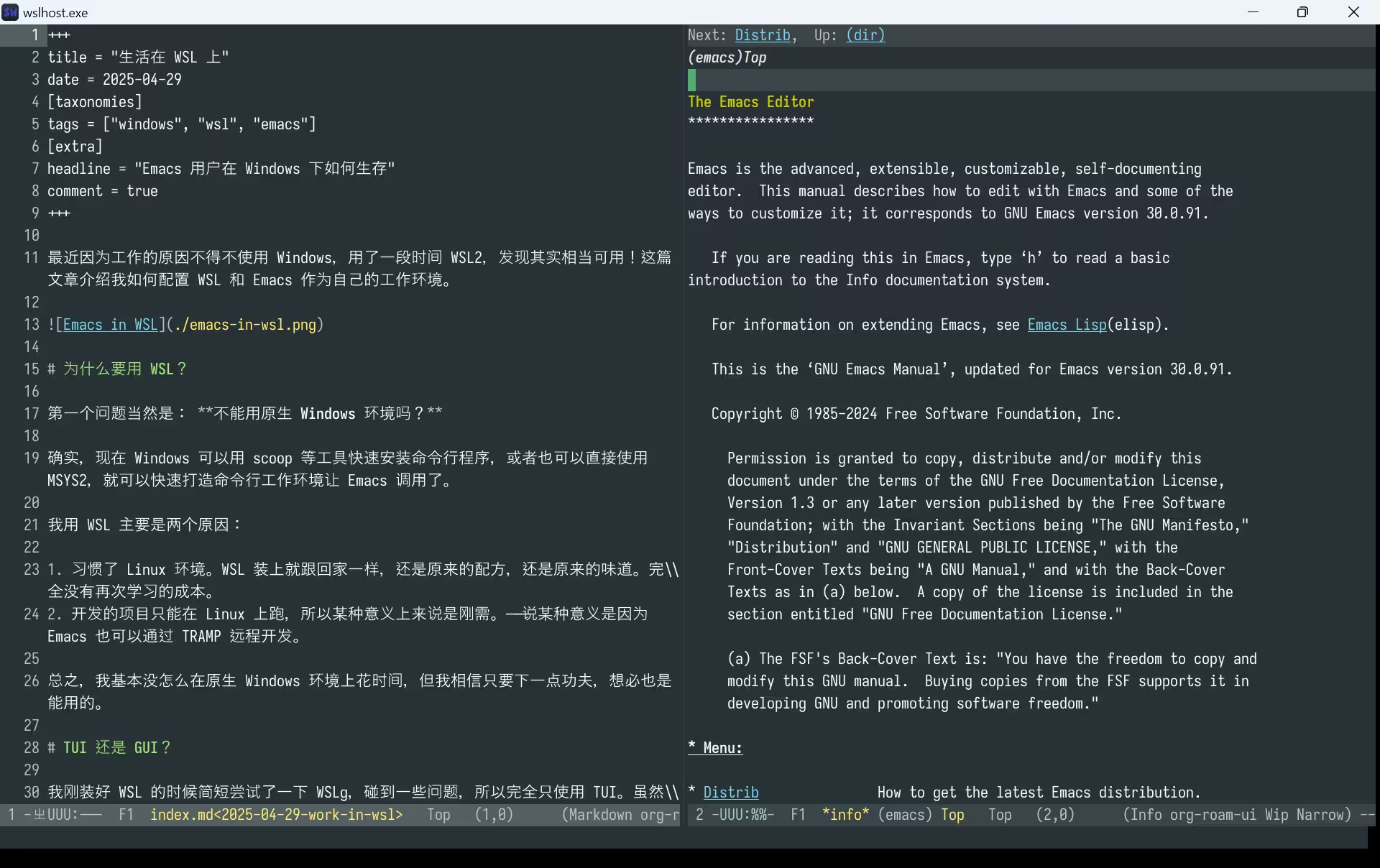
Why Use WSL?
The first question is, of course: why not use a native Windows environment?
Indeed, today Windows can use tools such as Scoop to install command-line programs quickly, or one can use MSYS2 directly and build a command-line environment for Emacs to call.
I mainly use WSL for two reasons:
- I am used to the Linux environment. Installing WSL feels like coming home: the same recipe, the same taste, and no learning cost.
- The projects I develop can only run on Linux, so in a sense it is a hard requirement. I say "in a sense" because Emacs can also use TRAMP for remote development.
In short, I have spent very little time on native Windows, but I believe it can also be made usable with some effort.
TUI or GUI?
When I first installed WSL, I briefly tried WSLg and ran into some problems, so I only used the TUI. At first this was a compromise, but later I found the TUI completely sufficient. Of course, using the TUI means giving up some features:
- The TUI can only use one font.
- TUI Emacs cannot display images.
- Before Emacs 30, there were no tty child frames.
Aside from that, there do not seem to be many shortcomings.
Which Terminal?
As shown above, I use WezTerm. At first I started with Windows Terminal like everyone else, but I soon found that Emacs in Windows Terminal had screen tearing, while WezTerm did not.
My WezTerm configuration is simple, but one thing is worth mentioning: Emacs in a terminal cannot receive some key sequences, such as C-TAB. We can bind this key in WezTerm to "send string to terminal program" as a workaround:
return {
   keys = {
      -- Press C-TAB to send C-x t o to the terminal program
      { key = 'Tab', mods = 'CTRL', action = act.SendString('\x18\x74\x6f') },
   }
}
To find this string, call kbd in IELM:
ELISP> (kbd "C-x t o")
"^Xto"
ELISP> ?^X
ELISP> ?^X
24
 (#o30, #x18, ?\C-x)
This tells you that Ctrl-x corresponds to the character with ASCII code 0x18, so you can construct the argument to SendString.
WSL Configuration
WSL has two layers of configuration:
C:\Users\USERNAME\.wslconfigon the Windows side, used to configure virtual-machine startup options./etc/wsl.confinside Linux, used to configure system startup and Linux services.
Below I omit full paths and only write filenames such as .wslconfig. See the official documentation.
Which Distribution?
Out of habit, I use Debian.
But I encountered some WSL Debian problems, such as not being able to start .exe files; the fix is mentioned below. These problems may not exist on Ubuntu, since Ubuntu is Microsoft's main target.
If you need to choose, I suggest choosing a distribution you understand. If you do not want to tinker, Ubuntu is fine.
Allocate More Hardware Resources
In .wslconfig:
processors=12
memory=12GB
Enable systemd
Edit /etc/wsl.conf:
[boot]
systemd = true
Run .exe Directly
Debian's WSLInterop seems to have some compatibility problems with systemd and needs manual repair:
Configure Docker
After enabling systemd, install the Docker packages directly.
Configure Qemu
WSL2 supports running KVM virtual machines. Edit .wslconfig:
nestedVirtualization=true
Edit /etc/wsl.conf:
[boot]
command = /bin/bash -c 'chown -v root:kvm /dev/kvm && chmod 600 /dev/kvm'
Emacs Configuration
Detect Whether You Are in WSL
(string-match "WSL2" operating-system-release)
This expression returns a non-nil value inside WSL.
Use the Mouse
Enable xterm-mouse-mode:
(when (not (display-graphic-p))
  (xterm-mouse-mode +1))
TUI Emacs supports using the mouse to resize panes, click menus, open context menus, select text, and so on. Basically, the operations you use in the GUI also work in the TUI.
Clipboard Integration
Clipboard integration may be the most important configuration. First define some commands:
(defun wsl-copy (beg end)
  "In a WSL2 environment, copy region to the system clipboard."
  (interactive "r")
  (let ((default-directory "/"))
    (shell-command-on-region beg end "clip.exe" " *wsl-copy*"))
  (deactivate-mark))

(defun wsl-get-clipboard ()
  "In a WSL2 environment, get the clipboard text."
  (let ((clipboard
         (let ((default-directory "/"))
           (shell-command-to-string "powershell.exe -command 'Get-Clipboard' 2>/dev/null"))))
    (setq clipboard (replace-regexp-in-string "\r" "" clipboard))
    (setq clipboard (substring clipboard 0 -1))
    clipboard))

(defun wsl-paste ()
  "In a WSL2 environment, paste the text from the system clipboard."
  (interactive)
  (if (derived-mode-p 'vterm-mode)
      (vterm-insert (wsl-get-clipboard))
    (insert (wsl-get-clipboard))))
The commands are wsl-copy and wsl-paste, and their purposes are self-explanatory. Can we integrate further? Yes:
(when (string-match "WSL2" operating-system-release)
  (advice-add 'gui-select-text :before
              (lambda (text)
                (when select-enable-clipboard
                  (with-temp-buffer
                    (insert text)
                    (wsl-copy (point-min) (point-max)))))))
Now pressing M-w automatically updates the Windows system clipboard. Unfortunately, this is only one-way synchronization; I have not yet found a way to make Emacs and Windows synchronize both ways.
Open Files Directly from Windows
I recommend installing wslu. It includes a command called wslview, which opens paths or URIs using the Windows-side default program.
With this command, many integrations become possible. In Dired, for example:
(setq dired-guess-shell-alist-user
        '(("\\.pdf\\'" "wslview")
          ("\\.png\\'" "wslview")
          ("\\.jpg\\'" "wslview")))
In practice, xdg-open also seems to work.
Another very useful command opens the current directory:
(defun open-directory-here ()
  "Open the current directory in the GUI file manager.

In most cases, this means the current directory of the current buffer."
  (interactive)
  (shell-command (format "%s %s" "wslview" (shell-quote-argument (expand-file-name default-directory)))))
(global-set-key (kbd "C-c d") #'open-directory-here)
GUI Dired supports drag-and-drop, but WSL does not. This command partially solves that problem.
browse-url
In Emacs, browse-url opens URLs in the system default browser. By default it cannot directly open the Windows default browser. After some investigation, I found that browse-url thinks the current system is Linux, but has no GUI, so it gives up. Forcing a DISPLAY environment variable solves it:
(when is-wsl
  (setenv "DISPLAY" ":0"))
Chinese Input
In theory, Windows Terminal and WezTerm can both use Windows input methods directly. In practice, I encountered a strange problem: if I type quickly, Chinese characters easily lose one byte, causing Emacs to fail to recognize them:
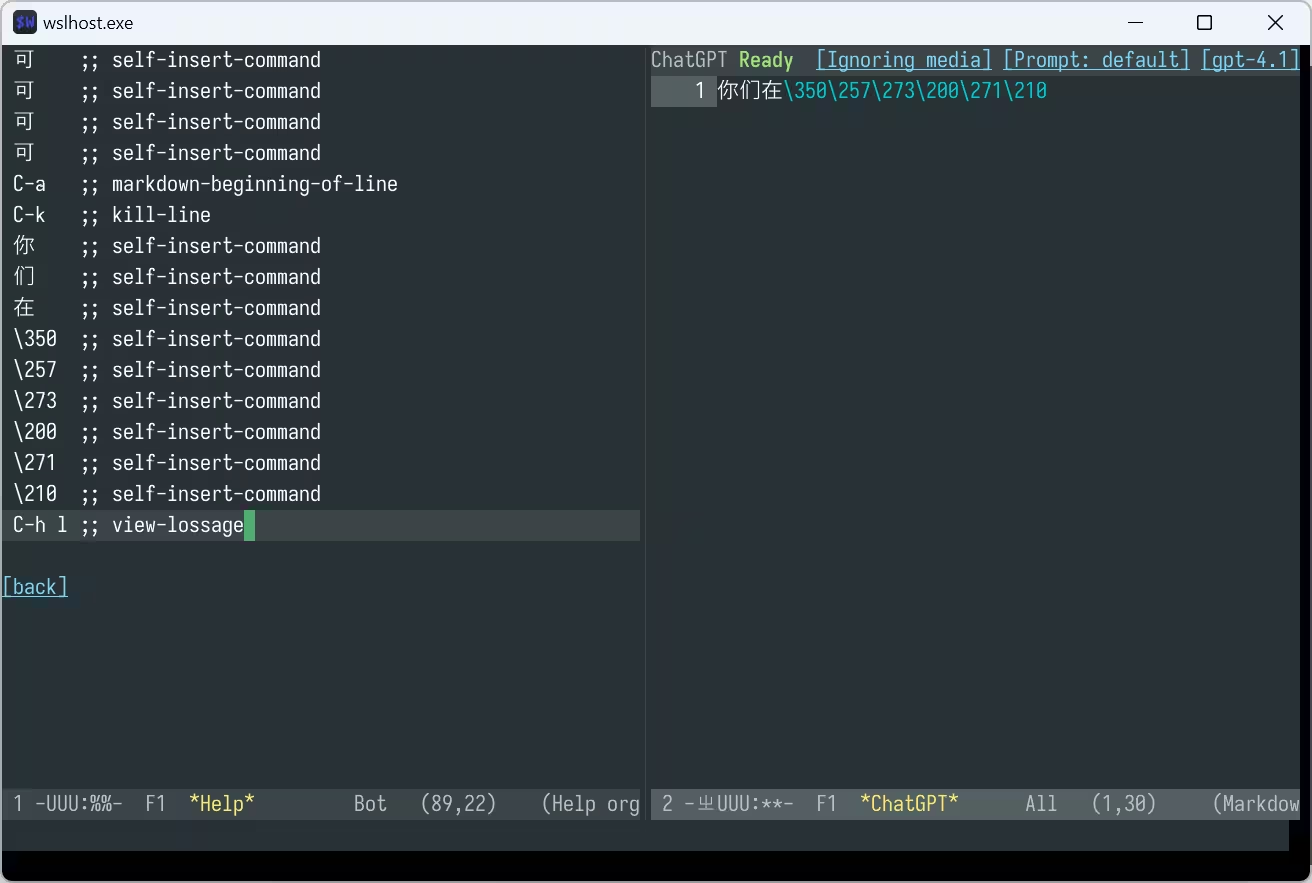
This problem can also be reproduced in Windows Terminal. Because the WSL architecture is complex, I do not yet know who is to blame: Windows PTY, Emacs, WSL, or the terminal emulator.
So for comfortable typing, I recommend configuring emacs-rime. I will not repeat how to configure Rime here. One caveat: emacs-rime cannot be used in isearch, because isearch does not use the minibuffer. isearch-mb fixes this.
LaTeX and SyncTeX
Install TeX Live directly inside Linux. For reading, use the Windows-side PDF reader:
(setq TeX-view-program-selection '((output-pdf "wslview")))
(setq TeX-view-program-list '(("wslview" ("wslview '%o'"))))
You can also let the PDF reader jump back to source code using SyncTeX information. For SumatraPDF, enter the following command in Settings -> Options -> Set inverse search command-line:
wsl emacsclient -n +%l:%c "$(wslpath '%f')"
Here l, c, and f are the line number, column number, and file path. wslpath converts a Windows-style filename into a filename usable inside WSL.
Boot into Emacs
I added this to the end of ~/.profile:
exec emacs
Now, whenever I open WSL, it automatically starts inside Emacs. It is almost hard to tell the difference from a standalone Emacs.
Another Reason to Use WSL Emacs
I did install native Windows Emacs, but strangely, my configuration takes 18 seconds to start there. In contrast, WSL TUI Emacs only takes 1.3 seconds.
End
These are the points worth mentioning for now.
Overall, WSL feels good. I have been using WSL for recent work and have not encountered any truly insurmountable problems.